
Last updated: 11 October 2026 · By Zoya K
Notion can run a lot of routine work on its own, but what you get depends on your plan, and the limits are scattered across several help pages. This guide puts it in one place: buttons, database automations, webhooks and Custom Agents, then the point where an outside tool such as n8n makes more sense.
What are Notion automations?
Notion automations are "when this happens, do that" rules built into Notion. Buttons run actions when someone clicks them. Database automations run when a page is added, a property changes or a schedule fires. Actions include editing properties, adding pages, notifying people, sending email, Slack messages and webhooks.
Notion's own definition is short: "Database automations are sequences of actions that happen any time a specific change to a database occurs" (Notion Help). A button is the manual version: you decide when it runs.
Every automation has two halves:
- Trigger: the event that starts it (a click, a new page, an edited property, a time of day).
- Actions: what Notion does next, in order (edit a property, add a page, notify someone, send a webhook).

Which automations work on which Notion plan?
Buttons work on every Notion plan, though some button actions are paid-only. Database automations need a paid plan: on Free you can create Slack-notification automations only and use automations that come inside templates. Webhook and email actions are paid features. Custom Agents need a Business or Enterprise plan and use Notion credits.
The ladder, from simplest to most flexible:
| Level | Plan needed | Trigger | What it can't do |
|---|---|---|---|
| 1. Page button | All plans (mail, webhook and Slack actions are paid) | A click | Run on its own; someone has to press it |
| 2. Database button (button property) | All plans (same paid actions) | A click on one row | Run on a schedule or on edits |
| 3. Database automation | Paid plans (Free: Slack notifications only) | Page added, Property edited, Every {frequency} | Trigger other automations; act on restricted pages |
| 4. Send webhook action | Paid plans | Any button or database automation | Send page content; use methods other than POST |
| 5. Custom Agent | Business or Enterprise, uses Notion credits | Schedule, Notion events, Slack | Run for free; see pages you haven't shared with it |
| 6. External tool (n8n, Make, Zapier) via the API | Any plan with an integration; webhook trigger needs paid | Webhook, API events or polling | Read pages the integration isn't connected to |
Sources: database automations, buttons, webhook actions, Custom Agents. For what each plan costs, see Notion plans and AI pricing.
How do you automate with Notion buttons on any plan?
Type /button on any page, name the button, then add actions such as Insert blocks, Add page to, Edit pages in, Send notification to or Open page or URL. Buttons work on all plans. Anyone with Full access or Can edit on the page can click one, and database actions need edit rights on the target database.
Steps:
- Type
/buttonand press Enter. - Give it a name and an icon people will recognize.
- Add one or more actions. Buttons can also "Show confirmation" before they run, which is handy for anything that edits many pages.
Recipe: meeting agenda button. Use Add page to with your Meetings database, prefill the date and attendees, then Insert blocks with your standard agenda headings.
On buttons, Send mail to, Send webhook and Send Slack notification to are paid-only (Notion's buttons page). Send notification to reaches "up to 20 people in your workspace," or a People property.

How do you create a Notion database automation?
Click ⚡ at the top of a database, then New automation. Choose a trigger (Page added, Property edited, or Every {frequency}), add one or more actions, and select Create. While you build it you can decide whether it runs on the entire database or only on pages in one specific view.
Database automations can be created, edited or deleted by paid-plan users with full access to the database. Guests can't create them.

Triggers
| Trigger | Fires when | Watch out for |
|---|---|---|
| Page added | A new page is created in the database | Pages added by another automation don't count |
| Property edited | A chosen property changes (you can filter by value) | Several "is edited" conditions must all happen within about three seconds |
| Every {frequency} | On a schedule: daily, weekly, monthly and so on, with time and timezone | Can't be paired with another trigger; works with every action except Edit property |
Actions
| Action | What it does |
|---|---|
| Edit property | Changes a property on the page that triggered the automation |
| Add page to | Creates a page in this or another database |
| Edit pages in | Changes pages in a database, filtered to the ones you pick |
| Send notification to | Sends a Notion inbox notification |
| Send mail to | Sends an email from your Gmail account; may take up to two minutes to arrive |
| Send Slack notification to | Posts to a Slack channel (Plus, Business, Enterprise; Free can create this one too) |
| Send webhook | Sends an HTTP POST with page properties to a URL |
| Define variables | Stores a value (from mentions or formulas) for later actions |
Four recipes to copy
- Stamp a completion date. Trigger: Property edited, Status is Done. Action: Edit property, set your Completed on date property to the current date.
- Create sub-tasks. Trigger: Page added. Action: Add page to your Tasks database three times, one per standard step, related to the new page.
- Weekly recurring entry. Trigger: Every week, Monday 9:00 in your timezone. Action: Add page to Weekly reviews. Remember that recurring triggers can't use Edit property, so create the page with its values instead.
- Mark sub-items complete. This is Notion's own example. Trigger: Status set to Complete. Define Variable 1 as
Trigger page.Sub-item, then Edit pages in with that variable, setting Status to Complete.

If you're setting up your first automation, start with recipe 1. It takes a minute, it's easy to verify (mark a task Done and watch the date appear), and it gives you a reliable completion date for weekly reviews and reports.
How do Notion webhooks send data to n8n, Make or Zapier?
The Send webhook action, available on paid plans, sends an HTTP POST with a database page's properties to any URL, such as an n8n, Make or Zapier webhook. You can add up to five per automation. It sends properties only, not page content, and the action itself doesn't require authentication.
The details from Notion's webhook actions page:
- "Webhooks only support POST request types."
- You choose which properties to send. Database button properties can't be selected.
- You can add custom headers (Key and Value), which is how you pass a shared secret your receiving workflow can check.
- There is no payload preview. Notion suggests pointing the webhook at a site like webhook.site first to see what arrives.
- If the webhook fails, an exclamation mark appears next to it and the automation is paused.
Webhook actions vs connection webhooks. A webhook action is a no-code step you add to an automation. Connection (integration) webhooks belong to the Notion API: an integration subscribes to events such as page.created or page.properties_updated, and Notion posts a small payload with the page ID, event type and timestamp. Your tool then calls the API to read the actual content.
Recipe 5: status change to n8n. Trigger: Property edited, Status is Ready. Action: Send webhook to your n8n Webhook node URL, with Name, Owner and Due date ticked and a custom header holding a secret. In n8n, check the header, then use the Notion node's Get Markdown operation with the page ID if you need the page body.

What are the limits of Notion automations, and how do you work around them?
The most common surprises are that automations don't trigger other automations, a broken automation pauses itself until you switch it back on, date maths fails on empty fields, recurring triggers can't edit properties, and webhooks can't send page content. Each has a workaround inside Notion or with an outside tool.
The limits checklist, all from Notion Help unless noted:
- No chaining. "Database automations can't be triggered by other automations." Button clicks, however, can trigger them. Workaround: put both steps in one automation, or start the chain with a button.
- Three-second window. If several "is edited" triggers must all happen, they need to land within about three seconds. Workaround: trigger on one property, or use a formula property that combines them.
- Recurring trigger can't use Edit property. Workaround: create a new page with the values set, or use Edit pages in.
- Errors pause the automation. Fix the cause, then open ••• → Automations, hover the automation, select ••• and toggle Active.
- Empty dates break date maths. Calculations like
dateAddcan fail on an empty field. Workaround: run the automation on a filtered view where the date is not empty. - Restricted pages are skipped. Automations won't act on pages whose access is restricted.
- Webhooks: POST only, five per automation, properties only, no preview (webhook actions).
- Free plan: Slack notifications only, and you can use but not edit automations that come in templates.
- Guests can't create automations.

When should you use n8n, Make or Zapier instead?
Move outside Notion when you need logic across several apps, branching, retries, the text inside pages, or a full log of every run. Connect the tool with a Notion integration token or OAuth connection, or start the workflow from a Notion webhook action and let the external tool do the rest.
Decision rule: if the job stays inside one workspace and follows one fixed path, keep it in Notion. If it touches another app, needs a branch, or must survive failures without someone noticing a paused toggle, build it outside.
I run self-hosted n8n, so that's the tool I'll describe. Its Notion node covers blocks (append, get many, get Markdown), data sources, databases, database pages (create, get, get many, update), pages (archive, create, get Markdown, search, update Markdown) and users. The separate Notion Trigger node starts a workflow on "Page added to database" or "Page updated in database". If an operation is missing, the HTTP Request node can call the Notion API directly with the same credential.
Two setup steps trip people up. Add the credential once, as an API integration token for an internal integration or OAuth2 for a public one (n8n docs). Then connect each page or database to the integration in Notion (••• → Connections → Connect to), because "if the page isn't shared, any API requests made will respond with an error." See how to get a Notion API key.
Make and Zapier can also receive Notion webhooks; Notion's own help mentions both as destinations. Check their current docs for field names.
A typical setup looks like this. A database automation fires when a request's Status changes to Approved, and its Send webhook action posts the page properties to an n8n Webhook node. The workflow creates the matching record in another tool, posts a message to the team chat, and writes the new record's link back to the Notion page with the Notion node. The webhook carries properties only, so if the workflow needs the page body, it reads it with the Notion node's Get Markdown operation as a separate step.
Should you use a Custom Agent instead of an automation?
Use a database automation when the rule is fixed and predictable: the same trigger always leads to the same steps. Use a Custom Agent when a step needs judgement, such as reading a page, summarising it or routing it by meaning, and the cost in Notion credits per run is acceptable for the value it adds.
Custom Agents "live inside Notion and run on your instructions." They need a Business or Enterprise plan and consume Notion credits. They can start on a schedule, on Notion events (pages created or updated, comments, property changes) or on Slack activity, and they only see the pages and databases you grant them.
A practical split: automations do the bookkeeping, an agent handles the step a person would otherwise read and decide. More in our guide to Notion Custom Agents.
How do you keep track of your Notion automations?
Every automation is invisible until it breaks, and a paused one fails quietly. Keep a register that records what each automation does, its trigger, its owner, where it sends data and how to pause it, plus a short runbook for the usual failures, so whoever finds the paused toggle knows what to check first.
For each automation, write down:
- Name, database and view.
- Trigger and actions in plain words.
- Owner, since only full-access paid users can edit it.
- Outbound data: which webhook URLs or apps receive properties.
- How to pause it and how to know it's paused.
- The first three things to check when it stops.
If n8n or Make is part of the chain, document those workflows too. Here is a documentation system for n8n and Make workflows.
A Notion hub with a workflow tracker, webhook and API registry, health checks, error logs and runbooks for exactly this register.
FAQ
Can you automate things in Notion for free?
Partly. Buttons work on all plans, and on Free you can create Slack-notification database automations and use automations that come in templates. Other database automations, webhooks and email actions need a paid plan.
Can Notion automations trigger each other?
No. Database automations can't be triggered by other automations, but a button click can trigger a database automation.
How do recurring automations work in Notion?
Use the Every {frequency} trigger and set daily, weekly or monthly timing with a time and timezone. It can't be combined with another trigger and works with every action except Edit property.
Does Notion have webhooks?
Yes, two kinds. The Send webhook action on paid plans posts page properties to a URL, and integrations built on the Notion API can subscribe to connection webhooks for events such as new or updated pages.
Why did my Notion automation stop working?
Automations pause after an error, such as a failed webhook or date maths on an empty field. Fix the cause, then go to ••• → Automations and toggle Active back on.
Can Notion send emails automatically?
Yes. On paid plans the Send mail to action sends email through your Gmail account, and messages may take up to two minutes to arrive.
Can guests create Notion automations?
No. Guests can't create database automations; creating and editing needs a paid-plan user with full access to the database.
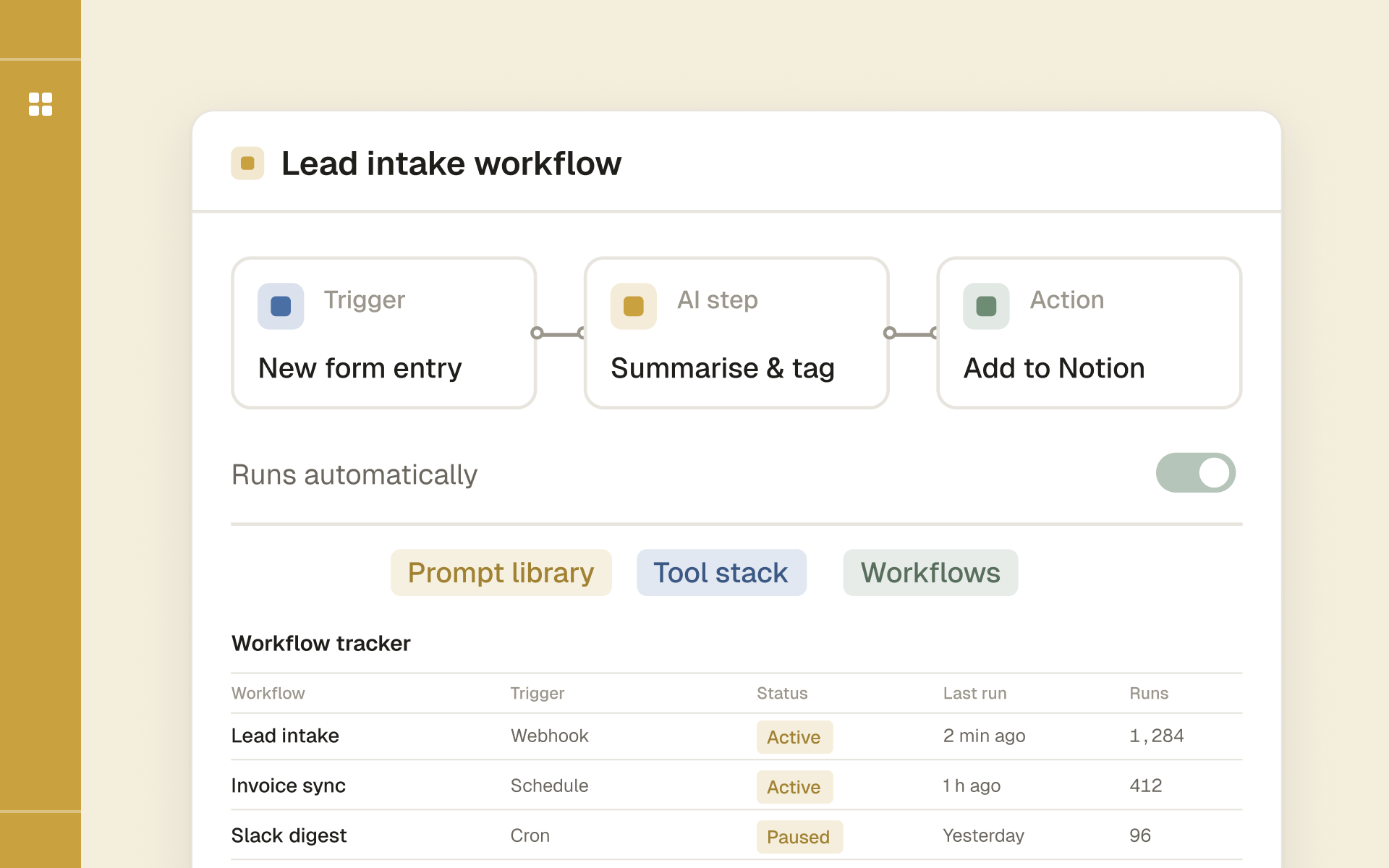
One workspace to track automation workflows, APIs, webhooks and runbooks while you learn n8n and AI agents.