Last updated: 11 October 2026 · By Zoya K
Notion renamed most of the screens that old tutorials describe. "Integrations" are now "connections", the "Internal Integration Secret" is now an internal connection API token, and there is a newer, faster option called a personal access token. This guide uses the names you'll see in Notion today.
What is a Notion API key?
A Notion API key is a secret token that lets a script or another app read and change your Notion workspace through Notion's REST API. Notion now offers two kinds for everyday use: a personal access token, which acts as you, and an internal connection API token, which acts as a separate bot.
Notion says a connection is "sometimes called an integration", and the API can "read, create, and update nearly everything in a workspace".
If a video tells you to click "+ New integration" and the button isn't there, this table maps old names to new ones.
| Old name (in older tutorials) | Current name (October 2026) |
|---|---|
| Integration | Connection |
| Internal integration | Internal connection |
| Internal Integration Secret | Internal connection API token (Configuration tab) |
| Public integration | Public connection (OAuth) |
| Develop or manage integrations / "My integrations" | Developer portal, plus Settings → Connections |
| (did not exist) | Personal access token (PAT) |
Two definitions to keep in mind for the rest of the guide. A personal access token is a token that lets one Notion user call the API as themselves, in one workspace. An internal connection is a workspace-scoped bot with its own token that only sees pages shared with it.
Which token do I need? PAT vs internal connection vs public connection
Pick a personal access token for scripts and tools that should act as you. Pick an internal connection for a team automation that shouldn't depend on one person's account. Pick a public connection, which uses OAuth, only if you are building an app that other Notion users will install in their own workspaces.
All three run on the same REST API. They differ in whose permissions the token carries.
| Personal access token | Internal connection | Public connection | |
|---|---|---|---|
| Acts as | You (the token creator) | Its own bot user | Whoever authorizes it |
| How you authenticate | Static bearer token | Static API token | OAuth 2.0 sign-in |
| Sees which pages | Everything you can see | Only pages shared with it | Pages the user picks |
| Good for | Your own scripts, a tool that works on your behalf | Team automations that survive staff changes | Apps for other people's workspaces |
Example: a freelancer whose script logs invoices into her own database needs a PAT. A team whose n8n workflow updates a shared tracker should use an internal connection, so it keeps working when its builder leaves.

How to create a personal access token (fastest way)
Open Personal access tokens in Notion's Developer portal, select New token, give it a name, choose the Notion API capability and an expiration, then select Create token. Copy the token right away and store it somewhere safe. Notion shows it once, and you can't view it again later.
The steps, following Notion's quick start:
- Open Personal access tokens in the Developer portal. Inside Notion, the help center route is: turn on Developer Mode in Settings, then open personal access tokens from the developer section of the sidebar.
- Select New token.
- Name it after its job, such as "n8n invoices".
- Choose the Notion API capability.
- Pick an expiration: 7 days, 30 days, 90 days, 180 days or 1 year. If you don't choose, the token expires after 1 year.
- Select the workspace if asked, then Create token.
- Copy the token and save it in a password manager or secret store. You won't see it again.
A PAT carries your own permissions, so there is nothing to share: if you can open a page, so can the token.

Who can create a personal access token on each plan?
This answers "why don't I see the button?" (source):
| Plan | Who can create PATs by default | Can an admin change it? |
|---|---|---|
| Free | Workspace owners only | No |
| Plus | All workspace members | No |
| Business | Workspace owners only | Yes |
| Enterprise | Workspace owners and selected groups | Yes |
Guests and restricted members can't create PATs. On Business and Enterprise, ask a workspace owner to enable them in Settings → Connections.
Don't see the option?
Check that you are a member, not a guest, that Developer Mode is on, and that your plan lets your role create tokens. Notion's help center says "only Workspace owners" can create integrations; that rule covers internal connections, not PATs.
How to create an internal connection (for team automations)
A workspace owner creates the connection in the Developer portal under Internal connections, then copies its API token from the Configuration tab. After that, the connection needs access to specific pages. A new connection sees nothing by default, so every request fails until you share pages with it.
Steps from Notion's internal connections guide:
- Open the Developer portal and select Internal connections under Build. You must be a workspace owner.
- Select Create a new connection, enter a name and choose the workspace.
- On the Configuration tab, keep only the capabilities the automation needs.
- Copy the API token from the same tab.

Give the connection access to pages
You have two ways to do it:
- From the Developer portal: open the connection's Content access tab and select the pages or databases it should reach.
- From Notion: open the page, click the ••• menu, choose Connections, then add your connection.
Fixing "Could not find object"
It usually means the token can't see the page. With an internal connection, the page isn't shared yet: "a newly created connection has no page access by default". Share it and retry.
With a PAT, either your account can't open that page or it sits in another workspace. A PAT works in one workspace only.
Test the token with one request
This call returns the user the token acts as. The token is a fake placeholder; never paste a real token into chat or public code.
curl https://api.notion.com/v1/users/me \
  -H "Authorization: Bearer ntn_XXXXXXXXXXXXXXXXXXXXXXXXXXXX" \
  -H "Notion-Version: 2026-03-11"
Both token types use this header. The Notion-Version value is from the quick start.
Where to paste the key: Zapier, n8n, Make and other tools
Most no-code tools ask for a Notion token in a credential or connection screen, or offer a Notion sign-in instead. A PAT or an internal connection token both work as a bearer token. Choose by whose permissions the automation should carry. In n8n, you save a Notion credential once and reuse it across nodes.
| Tool | Where the key goes | Which token to use |
|---|---|---|
| n8n | Notion credential, "API integration token" method | Internal connection for shared workflows; share pages with it |
| Zapier, Make | The Notion connection screen when you add a Notion step | Follow the tool's prompt; use a separate connection per tool |
| Your own script | An environment variable, read at runtime | PAT if it runs as you; internal connection if the team owns it |
n8n's credential docs offer an API integration token (internal) or OAuth2 (public). They still say "Internal Integration Secret", which is today's internal connection API token.
When the Notion node lacks an operation, n8n suggests the HTTP Request node "to call the service's API". Workflow examples: Notion automations with n8n and Zapier.
Is the Notion API free?
Yes. Notion doesn't charge a separate fee for API access. Free-plan workspace owners can create a personal access token, and on Plus every member can by default. Paid plans change who may create tokens and add features such as webhook actions in automations. They don't gate the API itself.
So "how much is the Notion API?" Nothing extra; you pay for the plan. For plan prices and AI costs, see Notion pricing and AI costs.
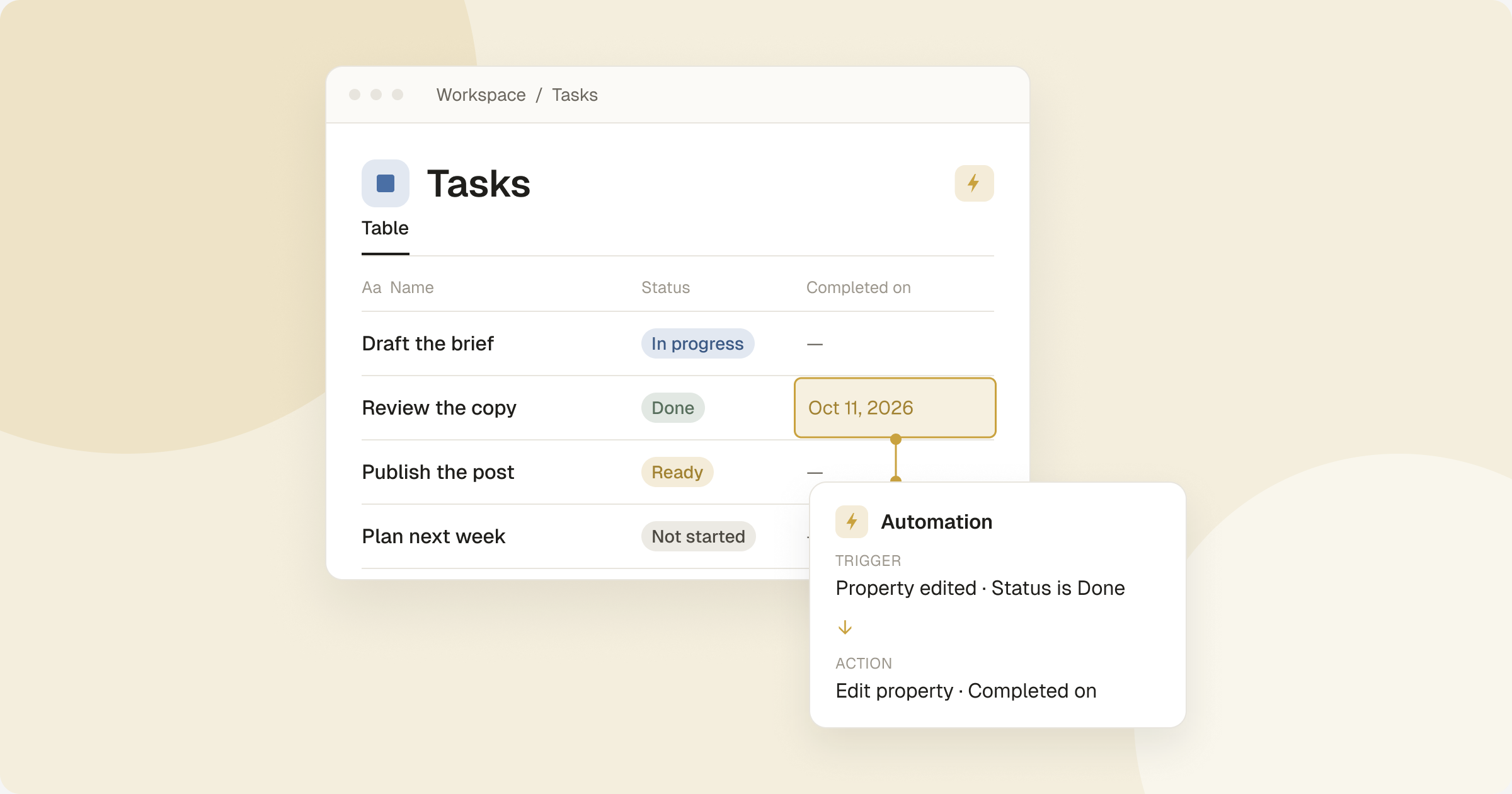
Webhooks come in two forms: connection webhooks that notify an app about workspace changes, and the "Send webhook" action in buttons and database automations, available on paid plans. That action sends database page properties, not page content.
Do I need an API key for Claude or ChatGPT?
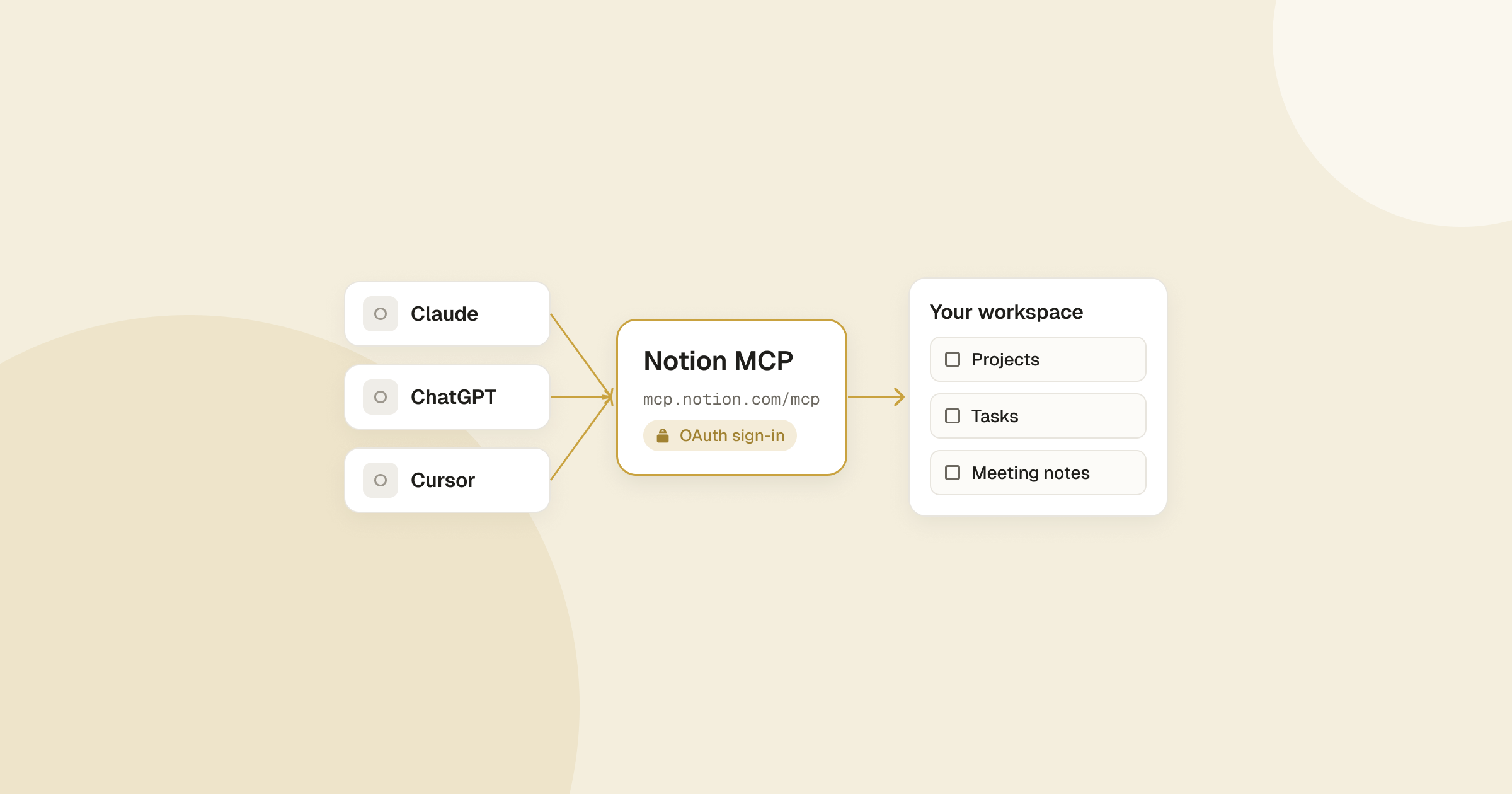
Usually not. AI tools that support MCP connect to Notion through Notion MCP, a remote server hosted by Notion, and you sign in with OAuth instead of copying a token. Keep API keys for scripts and automations that run on their own, without you approving each session.
Notion's MCP docs describe the flow: "After you authorize a connection with OAuth, the MCP client can use Notion MCP tools." It's also safer: no secret ends up pasted into a chat.
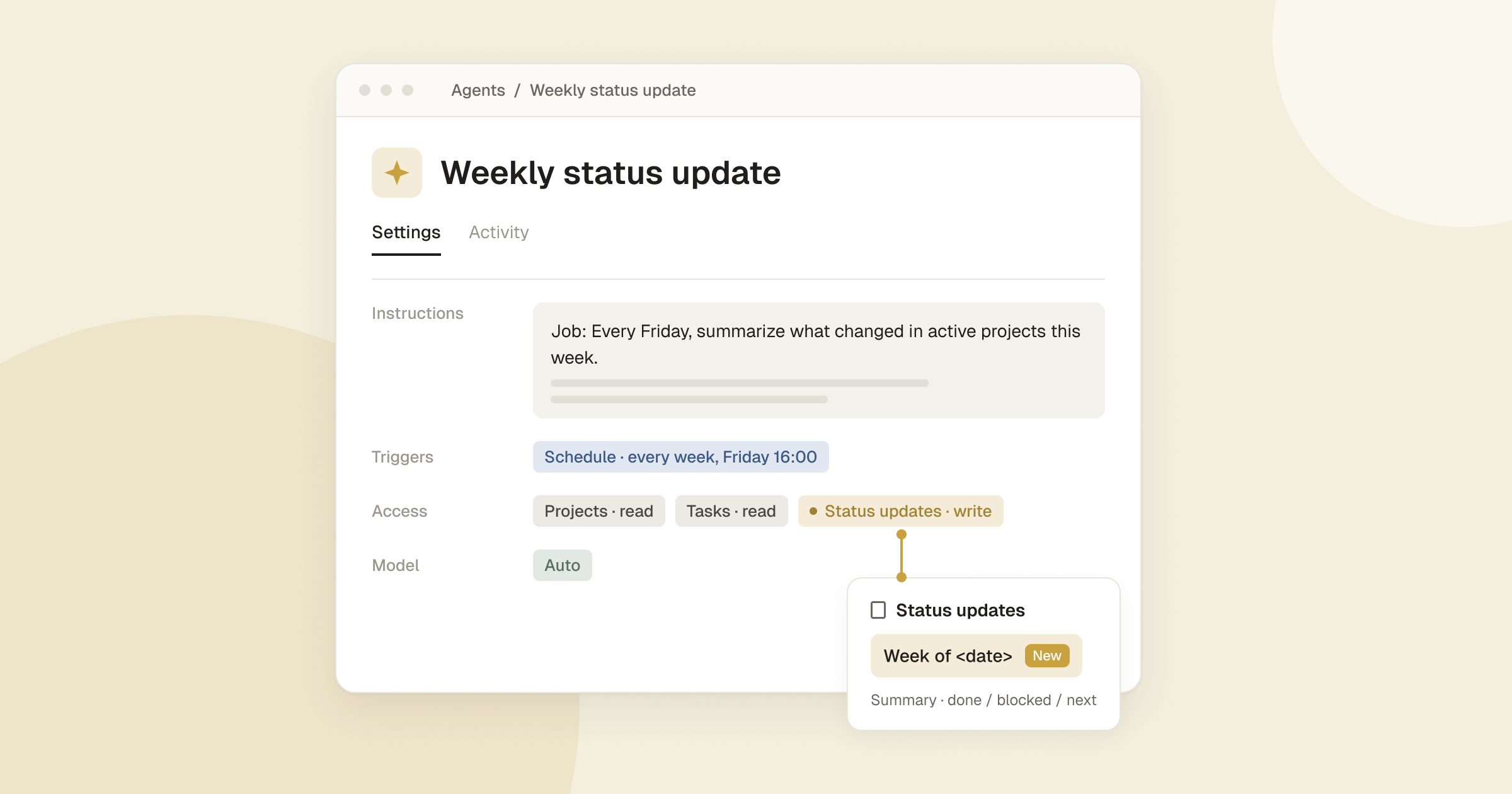
Setup: Notion MCP setup. AI inside Notion, like Custom Agents, needs no key.
How to keep your Notion API key safe
Treat a Notion token like a password. Keep it in an environment variable or secret manager, use one token per tool, give each token only the capabilities it needs, and revoke it the moment it might be exposed. Workspace admins can review and revoke every personal access token from Settings → Connections.
A checklist based on Notion's API key guidance:
- Never put tokens in messages, support tickets or committed code.
- Store them in environment variables or an encrypted secret manager.
- Grant only the capabilities each tool needs.
- Pick the shortest PAT expiration that fits the job, and revoke tokens you no longer use.
What to do if a token is exposed
- Disable it. Go to Settings → Connections, find the connection or personal access token, then refresh the internal connection's token or revoke the PAT.
- Update your apps. Replace the token everywhere, test, and delete old values.
- Review activity. Check recent changes and unfamiliar connections; contact Notion support if someone got in.

How do I keep track of all my Notion tokens?
Once three or four tools hold a Notion token, it gets hard to remember which one powers what. Keep a register with one entry per token: name, owner, token type and capability, expiry date, where it's used, and how to revoke it. Never store the secret itself in that register.
The fields that matter:
- Name as it appears in Settings → Connections.
- Owner: who created it (a PAT leaves with its owner).
- Type and capability: PAT or internal connection, plus read, update or insert.
- Expiry date, with a reminder a week before.
- Used in: tool and workflow, such as "n8n · invoice import".
- How to revoke: the exact path.
Making workflows AI-agent ready applies the same idea to every API key.

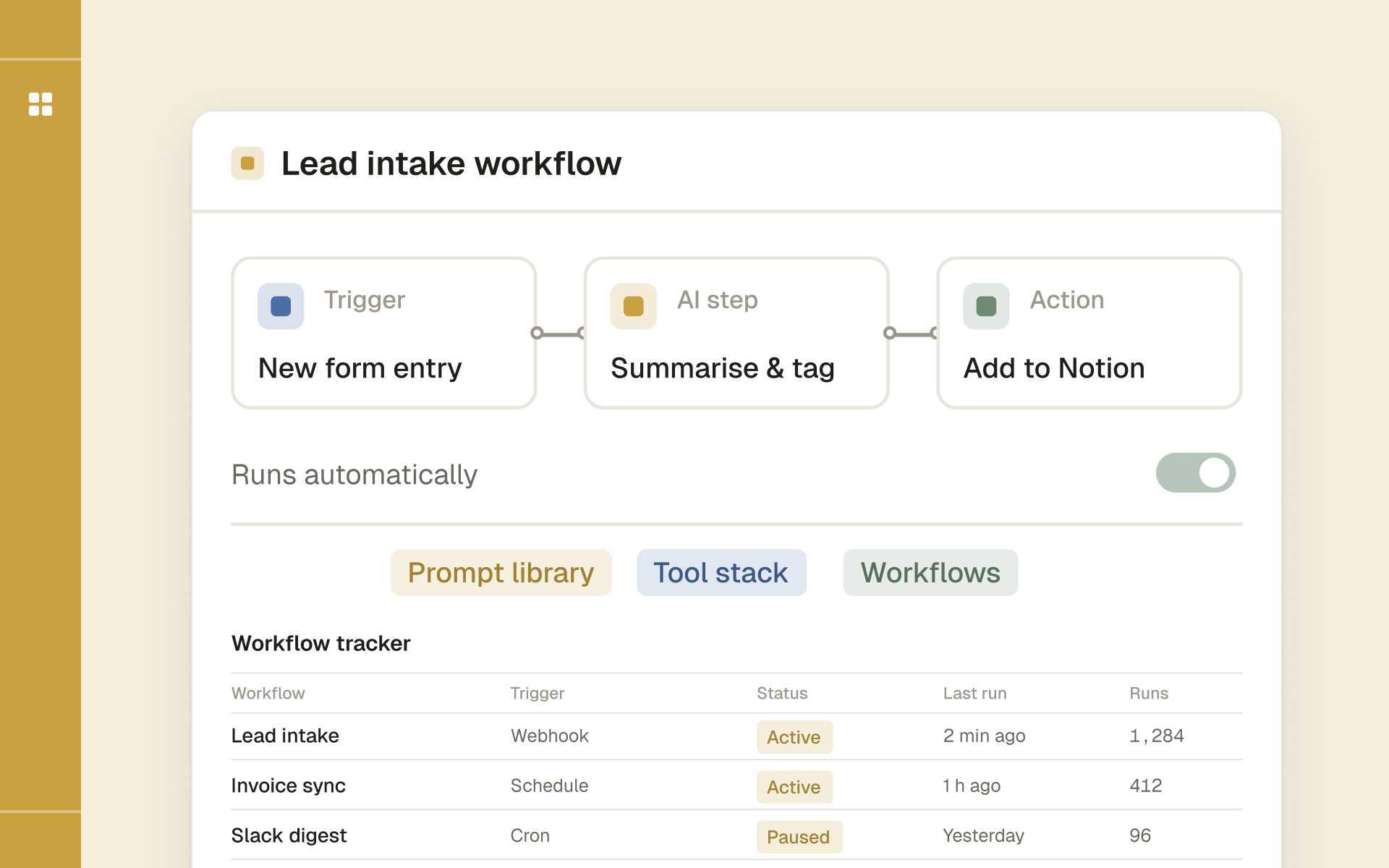
Its API registry, health checks and runbooks give you a ready place to track every Notion token and connection, without storing the secrets.
FAQ
Is the Notion API free?
Yes. There is no separate API fee. Free-plan workspace owners and, by default, all Plus members can create a personal access token.
How much is the Notion API?
Nothing on top of your Notion plan. The plan only changes who can create tokens and which automation features, such as webhook actions, are available.
What is the Notion API used for?
Scripts and apps use it to read, create and update pages, databases, users and comments, for syncs, reports, backups and imports.
Does Notion have API integration?
Yes. Integrations are now called connections; ready-made ones are in the connections directory.
Where is "My integrations" now?
Tokens and connections now live in the Developer portal and Settings → Connections.
Why do I get "Could not find object"?
Usually the page isn't shared with your internal connection. Add it via ••• → Connections. With a PAT, check your own access.
Do Notion API tokens expire?
Personal access tokens do: you choose 7, 30, 90 or 180 days or 1 year, and the default is 1 year. Internal connection tokens can be refreshed from Settings → Connections if exposed.
Can I see my Notion token again after creating it?
No, it's shown once. If you lose it, revoke it and create a new one.
Does Notion have webhooks?
Yes, two kinds. Connection webhooks notify apps about workspace changes, and the "Send webhook" action in buttons and database automations is available on paid plans.
Do I need a Notion API key to connect Claude or ChatGPT?
Usually not. AI tools that support MCP connect through Notion MCP with an OAuth sign-in, so there is no token to copy.